Showing posts with label Website Reviews. Show all posts

Tuesday, February 2, 2010

Glogster: Poster Yourself!

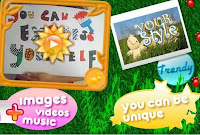
We have all heard of, seen and read Blogs - you are reading one right now! - and Blogging has become a fast hobby for many. You might have a favourite Blog which you like browsing through regularly, or you might have even tried your hand at Blogging yourself. Now there is a new way in which to express yourself: Glogging, as in Glogster - Poster Yourself!
Glogster is a digital poster creator, and allows expression of opinions, feelings and ideas, in a way that wouldn't be possible with the use of mere words. Rather like Blogs, it allows users to use an online medium in order to communicate with the outside world - but instead of text, users use graphical representations, photos, audio and videos to reach their audiences.

Getting Started

Glogster can be accessed at http://glogster.com. As always with this kind of online application, registration is always recommended in order to reap the full user benefits. After registration, click on the pink Log In icon on the top right hand side of the screen and you will be transported to your Glogster Profile. Here, you will be able to edit your profile details, access your own and other people's Public Glogs (because Glogs can be either Private or Public), and read your internal Glogster e-mail. You may also add other Glogster-using friends as buddies, and thus create a small, closed community of friends with whom to create and share Glogs. To start creating your Glog, click on My Desktop and Create a New Glog.

Your First Glog

When you click on Create a New Glog, a random, nearly-bare Glog will pop up on the screen. Each element of the Glog - the background, photos, titles, videos etc - can be edited by the user. The icons on the top left hand side of the screen - Upload and Link - enable one to either upload a picture, video or sound file, or add a link to an existing resource on the web. The uploaded resources will not be automatically be visible on the Glog; they will be stored in its library for later use.


Personalising Your Glog

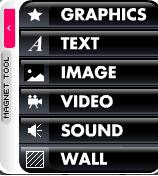
Once you have uploaded your resources, you can click on the floating (black) menu on the left hand side of the screen. This menu will enable you to either use your own uploaded resources or Glogster's ready made ones.

Graphics: By clicking on the Graphics tab, you will gain access to Glogster's graphics library which can be used in your Glog. The images can be manipulated to suit your Glog's needs.
Text: By clicking on the Text tab, you will be able to insert and edit text in your Glog.
Images: The previously uploaded images will be visible here, and you will be able to drag and drop them to your blog.
Videos: Allows you to embed Videos from SchoolTube. Alternatively, upload and embed your own video (Max file size: 100MB).
Sounds: Allows uploading of sound files from your computer or from online sources,
Wall: Enables you to change the background of the Glog. You can choose from Glogster's Gallery or upload your own.

Uploading and Sharing your Glog

Once your Glog is finalised, it will be ready to be published and shared with your friends or with the rest of the world. On the bottom right hand side of the screen there are two pink icons: Preview to see your Glog prior to publication; and Save and Publish to publish and share your Glog. From here you will be able to change the Glog's name, add Tags, Categories and make it Public (for viewing by anyone who accesses the site) or Private (for a selected group of friends only). Upon saving, you will also be able to post your Glog on your favourite Social Networking site or Blog - such as Facebook, MySpace, Wordpress or Blogger Blogs.


To start Glogging, simply log on to http://glogster.com. Go on...Poster Yourself ! :)

Wednesday, January 13, 2010

Kindersite: Where Children Play and Teachers Learn


As from this scholastic year (2009-2010), desktop PCs have started to be introduced in the Kindergarten classes in Malta and Gozo. Apart from the software which comes pre-installed on the Desktops, the Internet connection in the classrooms mean that the Kindergarten teachers also have a vast array of online educational games available freely to them. There are many excellent sites to choose from, and I will be dedicating some of the articles of this blog to them. The first site that I would like to talk about was recommended to me by a good friend (and experienced Kindergarten teacher from Fgura Primary) Miriam Schembri: Kindersite-Where Children Play and Teachers Learn.

Kindersite is a portal aimed at children who attend Kindergarten and the early years of Primary schools (3-6 years of age), plus a special section for older pupils (7-12 years). The site has thousands of links to the best stories, songs and games for young children. It also allows teachers to create individual children's profiles, so that the children's favourite sites and games can be individually bookmarked. It is best if the teacher registers first to the site, to be able to use all of its features. The site can be found at http://kindersite.org/, and to register, simply click on the right hand side of the page on the link that says 'New Users Register Here'.

Children's Directory

Upon loading the websites, at the top of the screen, two link buttons capture the children's (and teachers') attention: Children's Directory and Educational Games 7-12 Years. The former contains links to young learners' games, stories, lullabies and songs; the latter has educational games from slightly older students (up to 12 years of age). The Children's Directory has literally thousands of links for educational games, online story books and favourite children's rhymes. One can easily navigate between one category and the next; and each site has an icon (small graphic from the site) and short description about the activity. The interface is pretty easy to navigate, even for younger children.

Educational Games

The educational games section has links for slightly older students (7-12 year olds) and covers a wide array of online apps suitable for students from Primary to Early Secondary levels. Some links worth mentioning are for Dvolver Movie Maker, for creating short, animated videos, and Tag Galaxy, a flash application which allows you to search and browse through Flickr photos in 3D graphical rendition.


News Column

The news section contains news related to the website, including latest additions (such as the newly added Lullabies section), and articles both from the Kindersite Staff and also from renowned educators from all over the world. From the news section one can also access and print Kindersite Fliers and Surveys, and add oneself to the site's list servers.

Kindersite Projects

Kindersite have also been recently endorsed by the European Community, Directorate-General for Education and Culture for 14 projects in education. There are 14 projects in total, including Language Learning projects and EduComics, a projects which focuses on the use and creation of Comics in Education. More projects can be accessed from the Projects section.

To browse through the myriad of resources, materials and projects available on the site, don't forget to login and register on http://kindersite.org

An essential for the Kindergarten and Primary classrooms!

Friday, March 27, 2009

Vimeo


When talking about uploading and sharing of videos online, the vast majority of people automatically think of YouTube. However, YouTube is definitely not the only site which offers these online services. Another popular site (especially in the US) is Vimeo.

Vimeo is a video-centric social networking site, launched by InterActiveCorp in 2004. Its name, "Vimeo", is, in fact, an anagram of the word "movie". The site hosts around 13,000 video uploads daily, 10% of which in HD. Most notably, the White House regularly uploads HD versions of Barac Obama's broadcasts on Vimeo.

Although Vimeo is primarily used to upload videos, its core purpose is very different from that of YouTube. It is not commonly used to download music videos or cartoons or excerpts from movies. Vimeo is essentially a social networking site, where people of similar interests can create groups and upload instructional, demonstrative or simply entertaining videos. It offers a somewhat safer, cleaner environment in which to work with our students.

Getting Started

Although anyone can access Vimeo, it is always best to create an account first (otherwise you will find yourself locked out of many features). When signing in for the first time, it will ask you if you want to link you Vimeo account with your own Facebook account for convenience - I did, of course :) When you first log in, your display should look something like this...


On the top right hand side of the screen one can find the Menu Bar with a series of drop-down menus. Clicking on Me will allow the user to edit the Home Page, Profile, Settings and Contacts. The Me menu will also allow the user to engage in private messages and conversations with their contacts on Vimeo. From the Video menu one can, apart from uploading Videos, manage Albums, Groups, Channels and Subscriptions. Alternatively, to upload a video, simply click on the Upload menu.

Uploading Videos

To upload a video, simply click on the Upload Video button. Vimeo offers the user the possibility to upload up to 500MB of videos every week (including HD). Videos can be tagged so that they are labelled and more easily found. Altough it allows users to share videos and to download each other's videos, its rigid privacy settings mean that the users can decide if they want their video to be available for others to watch or download from the site, or not. In other words, uploaded videos can be kept totally secret from the general viewing public. Users may opt to use Vimeo purely to keep a backup of their videos.

This short screen cast was developed by the Vimeo team, and shows how one may upload a video and keep it private...


Additional Features

Below is a list of some additional stuff that can be done with Vimeo. To learn more about these features, click on the Explore menu on the top right hand side of the screen.

Groups: Creating a Group in Vimeo is like creating a mini community within Vimeo of people with common interests like yourself. Within a group users are able to share and discuss videos, music, photos, events, etc. (When searching Groups, I managed to find a good number of teachers' groups).

Channels: A simple way to showcase videos is to create a Channel where your viewers can watch your creations.

Projects:  Users here can discuss ongoing or future audio-visual projects they wish to embark upon.  It is also a sort of forum, where the users may engage in discussions about technical issues, requested features, general discussions about videos, etc.

Toys: Vimeo Toys are discovery applications that enable users to check out the latest videos and activity on the Vimeo service. Vimeo Land is a cartoon-style 2D world, while Pulse is one huge collage of all the videos being uploaded in real time. Users can actually engage in and create their own "Vimeo Toys".


As one can see, there is more to Vimeo than just uploading and sharing of videos. It is more of a specialised community of people who share videos and ideas with each other. It is very, very different from YouTube, and do take my word for it. It can be safely used to upload children's content videos online and embed them into a Blog or even on Skola portal. Try it out at http://www.vimeo.com/

Wednesday, December 17, 2008

Christmas with the Kids...


Christmas  is a very special time in the primary classroom...We put up the decorations, we sing carols, we prepare for the Christmas pageant...Most teachers will tell you that this is the term they enjoy the most.


Here are three of  my favourite Christmas-Themed websites, with a short description of each. Enjoy!

  • http://www.northpole.com/:  Quite a good website, and will keep students of all ages entertained for hours...Click on the village houses to access the different activities available...Children can listen to stories, read about the Elves, watch the North Pole weather forecast, send e-postcards to each other and even send a letter to Santa Himself!
  • http://www.whychristmas.com/:  For slightly older students, this websites explores different Christmas traditions around the world, with more stories to read, activities and fun games.  A special thank you to my colleague Marica Saliba for pointing this site out to me (thanks a lot!)
  • http://www.claus.com/village.php:   This is another Christmas-Village themed site, where the children click on the different houses in order to read Santa's Posts, discover who is 'naughty' and who is 'nice', learn all about the Elves and the Reindeers and play Christmas-Themed games.
I hope your children enjoy these websites as much as mine did...Have fun !